


In today’s post we’re going to show you step by step how to create and use encrypted keys to increase the security of your SSH login.
First, let’s create the keys with the following steps:
- Open the terminal or command prompt.
- Enter the following command to generate an SSH key pair:
ssh-keygen - You will be asked to choose a location to save the keys. Enter a custom path or press Enter to accept the default location which is: /(user)/.ssh
- You will then be asked to enter a passphrase to protect your key. This is optional, but recommended for greater security.
- Two files will be generated: a private key (usually named id_rsa) and a public key (named id_rsa.pub).
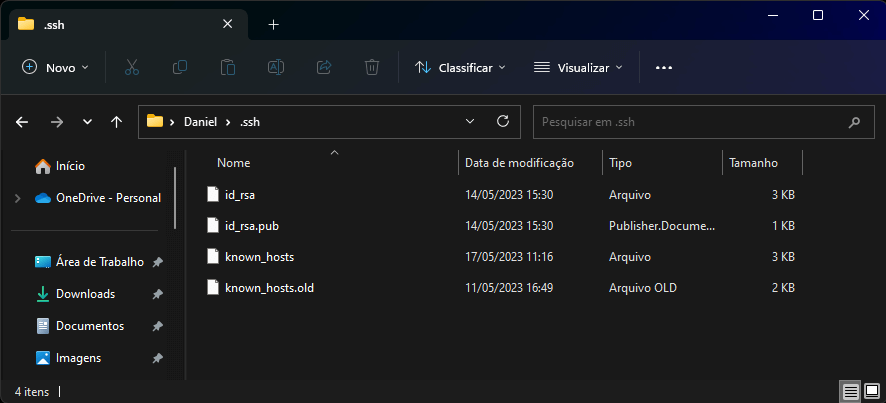
Now we’ll show you how to copy and use the keys:
- Copy the public key to the remote server where you want to log in using the following command if it is copied from Windows:
type $env:USERPROFILE\.ssh\id_rsa.pub | ssh username@remote_host "cat >> .ssh/authorized_keys" - And the following command if copied from Linux:
cat ~/.ssh/id_rsa.pub | ssh username@remote_host "mkdir -p ~/.ssh && cat >> ~/.ssh/authorized_keys" - You will be asked for the remote user’s password. Enter it and the key will be copied to the server.
- Now you can log in to the server without entering your password or just by typing in the passphrase.
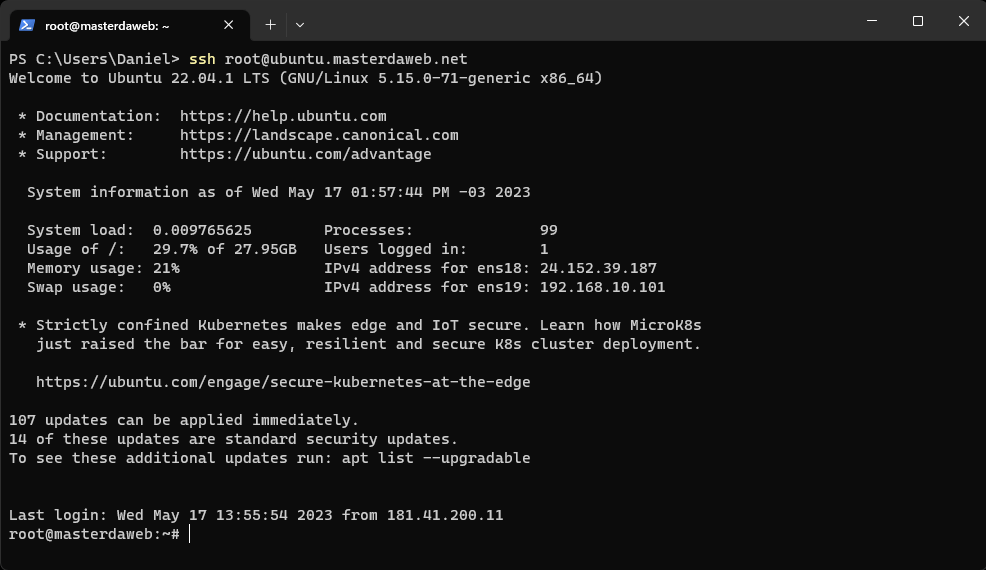
See also our video tutorial available on our YouTube channel:
Master da Web, your Cloud solution!☁️
Tags#cryptography#key#linux#password#SSH