


Windows Server 2025, like previous versions, applies an account lockout policy by default.
This policy temporarily locks users after several failed login attempts, protecting against brute force attacks.
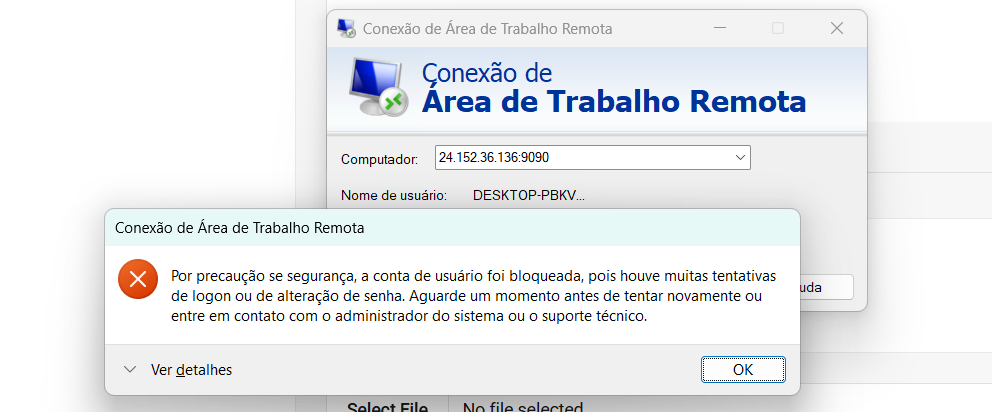
However, in certain scenarios (such as test environments or internal servers), it may be necessary to permanently disable this lockout.
In this guide, you’ll learn how to do this simply using the graphical interface of secpol.msc.
Step 1 – Open the Local Security Policy Editor
- Press
Win + R - Type: secpol.msc
- Press Enter
This will open the Local Security Policy Editor.
Step 2 – Navigate to the Account Lockout Policy
In the left panel, follow the path:
Políticas de Conta
└── Política de Bloqueio de Conta
Step 3 – Edit the Settings
In the right panel, you’ll see three policies:
- Account lockout threshold
- Account lockout duration
- Reset account lockout counter after
Required Adjustment:
- Double-click on Account lockout threshold
- Set the value to 0
- Click OK
By setting the value to 0, you’re telling Windows that no accounts will be locked, regardless of the number of incorrect attempts.
The other options become ineffective.
Step 4 – Apply and Confirm the Change
- Close the
secpol.msc - Open the Command Prompt or PowerShell
- Type: gpupdate /force
- Then, still in the Command Prompt or PowerShell, type: net accounts
Look for the line: Lockout threshold: Never
If it shows Never, the change was applied successfully ✅
⚠️ Security Warning
Although useful in test environments or internal networks, disabling account lockout can pose serious security risks.
An intruder can try passwords indefinitely without the account being locked.
Recommendations to Mitigate Risks:
- Restrict RDP access by Firewall or VPN
- Change the default RDP port (3389)
- Enable multi-factor authentication (MFA)
Conclusion
Disabling account lockout in Windows Server 2025 via secpol.msc is simple and quick.
However, this change should be made consciously, as it reduces security against brute force attacks.
Always evaluate the environment where it will be applied and, if possible, combine it with other protective measures.